
/Vector%20(6).svg) Back to Blog
Back to Blog
Are you looking for a messaging platform that provides top-notch features to communicate effectively? Look no further than ChatSpot! In this guide, we will cover the main things to keep in mind when trying out ChatSpot.
What is ChatSpot?
ChatSpot.ai is a cutting-edge tool that combines the power of ChatGPT - 3.5 & ChatGPT - 4 and Dall-E powered app with HubSpot CRM. With ChatSpot.ai, you can easily ask questions and provide detailed instructions for a task using natural language in a user-friendly chat interface. This powerful integration allows you to streamline your workflow and improve your productivity, all while creating a seamless customer experience.
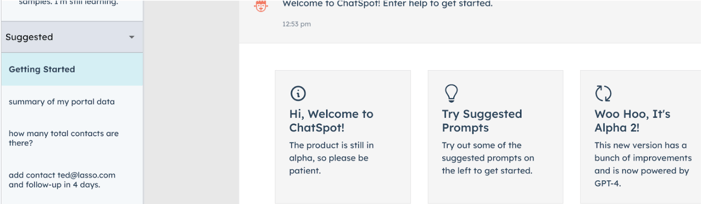
Things you must know in order to get started:
- To use ChatSpot.ai, you must first create an account and apply for acceptance since it is an alpha software.
- If you want to create documents and presentations with ChatSpot.ai, then you must connect your Google account to the application.
What are ChatSpot’s Main Advantages
ChatSpot is a powerful tool that integrates generative AI with your HubSpot data, offering a one-stop solution for growth professionals. By using chat-based commands, you can accomplish almost everything you already do in HubSpot, but faster. With ChatSpot, you can add new contacts, send follow-up emails, pull reports, create new segments, and more, all with simple commands. By freeing up more of your time, it allows you to focus on what really matters for your business:
- ChatSpot allows you to chat with the CRM with the capabilities of ChatGPT.
- Since it is connected to HubSpot you will be able to leverage data from the CRM and gain immediate insights.
- The connection allows you to modify your database too.
- It saves you time by avoiding exports and copy pasting information by connecting ChatSpot to your google docs. This will allow you to transform data into presentations.
Connect HubSpot Portal to Chatspot
To make use of Chatspot, you will need to connect it to your HubSpot Portal. Check in with your team to make sure whomever owns the portal grants you permission- assuming this person is not you.
- Go to Settings:

- Go to Connected HubSpot Accounts:
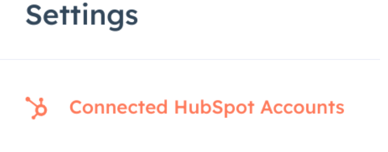
- Click Connect Account:

- Choose the account to connect to, make sure you choose the right one:
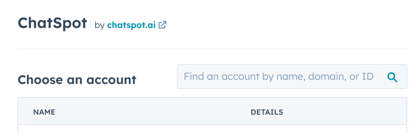
- Click ‘Choose Account':

- Give ChatSpot Access to Connect:
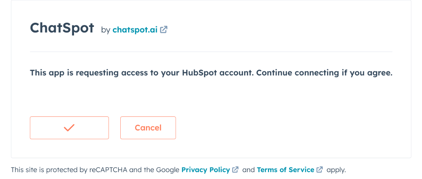
Seamlessly Connect Google Docs Account
To create ChatGPT-optimized presentations and access your CRM data, granting ChatSpot access is necessary.
- Go to Settings:

- Go to Connect Accounts:

- Click ‘Connect to Google Docs’ in the Google Docs Section:

- Go through Google Verification and authentication pages, using your authorized account.
- Finish connecting.
Top ChatSpot Prompts to Enhance Your Experience
Similar to ChatGPT, ChatSpot utilizes generative AI to interpret natural language queries, or 'prompts', and provide you with the desired response. However, as with any AI technology, the quality of the output is heavily dependent on the input provided.
Here are some examples to help you get started:
- How many [Contacts/deals/tickets] are there?
This will allow you to easily retrieve the count of contacts/deals/tickets and their associations. - Add [contact/deal/ticket] [record information to add]
Add records directly from chatspot - Report of all [Industry] companies in [geographical area]
Utilize HubSpot's industry insights to obtain a list of companies in a specific geographic location and industry. This is also useful for competitor research and analysis or outreach campaigns.- Advanced Example: “Generate report of company names for companies with associated contacts, segmented by the number of associated contacts for each company”
- Advanced Example: “Generate report of company names for companies with associated contacts, segmented by the number of associated contacts for each company”
- Generate Reports: “Generate a report of [contacts/tickets/deals] created per month [in year/quarter/etc]”
You can tailor the prompt to select specific data within a time frame. - Make that a bar chart
After creating the report, you can use additional prompts to change the format into a more visual presentation, such as a bar chart. - Save to [platform] as [name]
With this handy function, you can save your work either to HubSpot or Google Docs.
How to Create a Personal HubSpot Test Account
Creating a test account in HubSpot is an essential step if you are looking to experiment and test the applications in a safe environment and avoid rookie mistakes. Follow these simple steps, and you'll be ready to test your application in no time!
- Create a HubSpot developer account here.
- It will ask you for a username. We suggest you include the terms "Test account" to be able to differentiate it from your portal account. Once your developer account has been created, you should see a screen similar to this one:
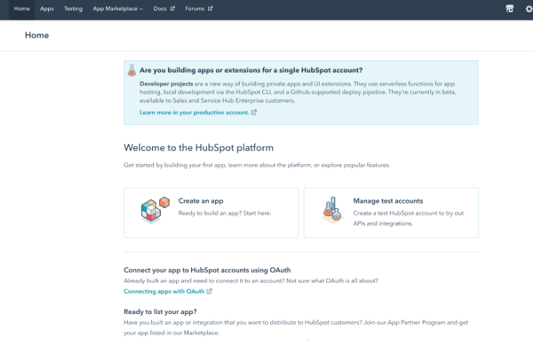
- Click on “Manage Test Accounts” on your dashboard.
- Click the “Create App Test Account” button in the upper right-hand corner:
- Name your account in the following format [Test Account] Your Name
- Congratulations! You have now created a fully-functional enterprise-level HubSpot test account for your personal use.
Streamline Your Workflow and Improve Productivity with Chatspot
By leveraging data from HubSpot and using chat-based commands, you can accomplish almost everything you already do in HubSpot, but faster. Keep in mind that this is a mini version of what ChatSpot.ai will become in the future, so dream big and iterate small. Stay updated on new features and updates as they are released by HubSpot. You can also join the HubSpot chat community to share your hacks or learn from other users' experiences.
So, if you want to enhance your communication and workflow, try out ChatSpot. If you want to learn more about what you can do with the CRM contact us and we will help you get started.
.svg)
/Vector%20(28).svg)

/Vector%20(27).svg)
/Vector%20(26).svg)


