
/Vector%20(6).svg) Back to Blog
Back to Blog
What is GPT for Sheets?
It's an incredible tool that harnesses the power of the OpenAI Chat GPT API to enhance your spreadsheet experience. With GPT for Sheets, you can accomplish a variety of actions seamlessly, including creating text based on prompts, effortlessly editing and fixing data using example patterns, tagging texts with main keywords and topics, and so much more. It's like having a reliable assistant right within your spreadsheets. Explore the endless possibilities and unleash the full potential of your data with GPT for Sheets!
How to Install GPT for Sheets?
The process is pretty straightforward and we have created 9 simple steps to help you get started:
1. Download the GPT for Sheets and Docs Extension
Install the powerful GPT for Sheets and Docs extension right from the Google Workspace marketplace.
2. Set up an Open AI account, and add credit
You will need to create an account to use the add-on. You can start with a free trial but eventually, you will need to set up a paid account. If you’d like to estimate the cost of the account to use the extension you can do so with this pricing calculator. Remember you will need to add credit to use the Open AI API.
The pricing model is pay-as-you-go. If you are worried about spending over your budget the platform allows you to set a spending limit and you can also monitor your usage in the OpenAI dashboard usage section.
3. Create a new Google spreadsheet
You will only need to complete this procedure once. After all the sheets you own will be able to benefit from the add-on.
4. Navigate to Extensions on the Sheet:
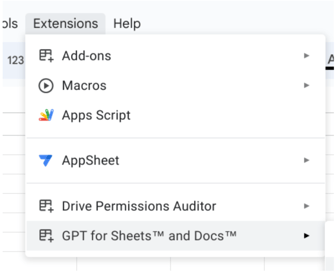
5. Hover over “GPT for Sheets and Docs”, and choose “Set API Key”:
The GPT for Sheets and Docs extension is built on OpenAI APIs and requires you to bring your own API key.
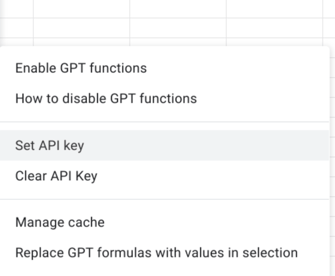
The following box should pop up:
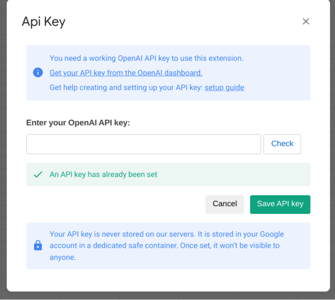
6. Get API Key
The API key is a unique identifier that allows OpenAI to bill you properly and have visibility over your usage.
You can find your key by logging in with your account and entering this link.
Click on the "create a new secret key" button to obtain your API key. Remember you must not share this key, if you do the system might block it. Copy the key as the platform will not allow you to see it again on your OpenAI account.

7. Paste the Key into the dialogue box in Sheets, and click "Save API Key"
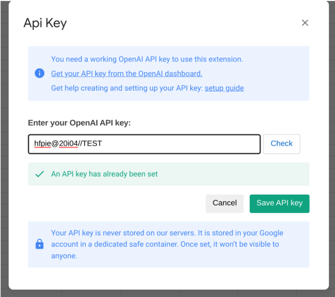
Paste the key generated by Open AI into the text box, and press “Save API Key.” A confirmation message should appear confirming that the API Key has been linked correctly. Once you’ve set it up, you can activate GPT functions on any spreadsheet you own.
If this does not work, complete the following steps:
- Retry the process using the same key.
- Generate a new key within Open AI and retry the process with the new key.
8. Enable GPT Functions
You are now ready to use GPT for Sheets in your Google Sheet of Choice! To do so, enable GPT Functions:
Go to Extensions > GPT for Sheets and Docs > Enable GPT Functions
9. Enjoy all you can do with GPT for Sheets!
What can you do with GPT for Sheets?
GPT for Sheets provides a range of powerful features that can greatly assist with data cleaning and formatting tasks. For example, it can automatically identify and remove duplicates, inconsistencies, and errors in your dataset. Let's say, you have a large spreadsheet containing customer information, and some entries have duplicate email addresses. GPT for Sheets can quickly identify and help you eliminate these duplicates, ensuring clean and accurate data.
Furthermore, GPT for Sheets excels at generating copies tailored to specific platforms, enabling efficient content creation. Suppose you're managing a social media campaign and must create engaging posts for different platforms. With GPT for Sheets, you can input a general message and instruct it to generate platform-specific copies. It can automatically adapt the content for organic social media posts on platforms like Facebook, Twitter, and Instagram.
Additionally, if you're running paid advertising campaigns, GPT for Sheets can assist in creating persuasive copies for social media ads and display ads, optimizing your marketing efforts.
In summary, GPT for Sheets streamlines data cleaning and formatting tasks by eliminating duplicates and errors. It also enhances content creation by generating platform-specific copies, making it a valuable tool for efficient data management and marketing campaigns.
.svg)
/Vector%20(28).svg)

/Vector%20(27).svg)
/Vector%20(26).svg)


